Style guide - Site information, media, layout tools

“This is the quote block. For each quote you add an image, the quote, and an attribution. Each quote then displays in a slider.”
Grade 7 Student, Hamilton Elementary, Vancouver

"I feel much safer riding on the road after the couse"
RJ - Grade 6
Accordion
A block called "Accordion Block" already existed. Use this one just called "Accordion"
You can add as many accordion items as you like.
Note the horizontal rule above. This is optional and is added by selecting the "Add horizontal rule switch"
There are a few other blocks with this design style.
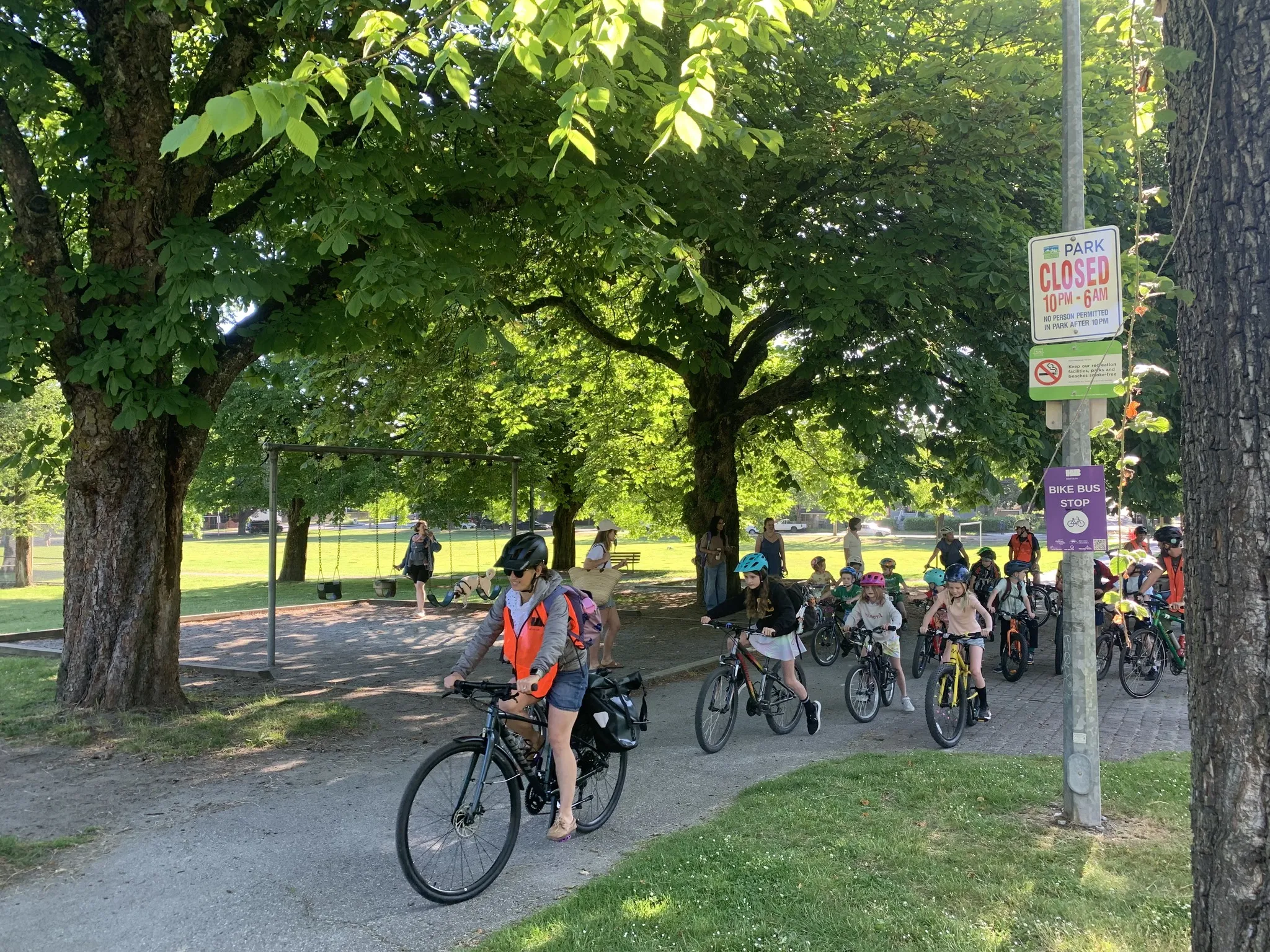
What is a Bike Bus
What will volunteers need to do?
Information goes here.
Is there a cost to the program?
Information goes here.
Will bikes be provided?
What are the benefits of having a Bike Bus?
Statistics Block!
A fun way to surface number related information.
This is the video block
You can select remote videos already added via the media library.
Or add new ones.
Again there is a horizontal rule option. There are also some title style options to match design.
Photo Gallery Block
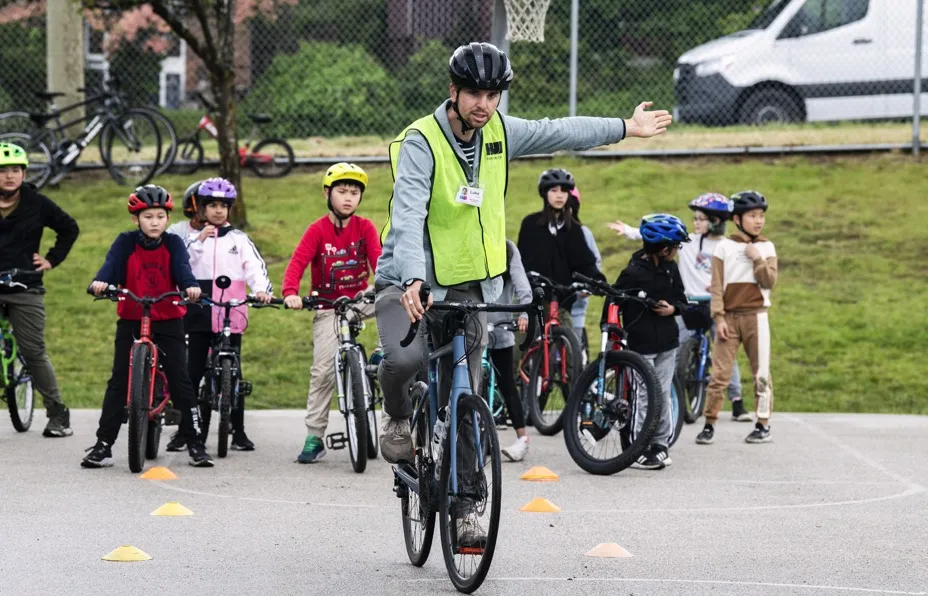
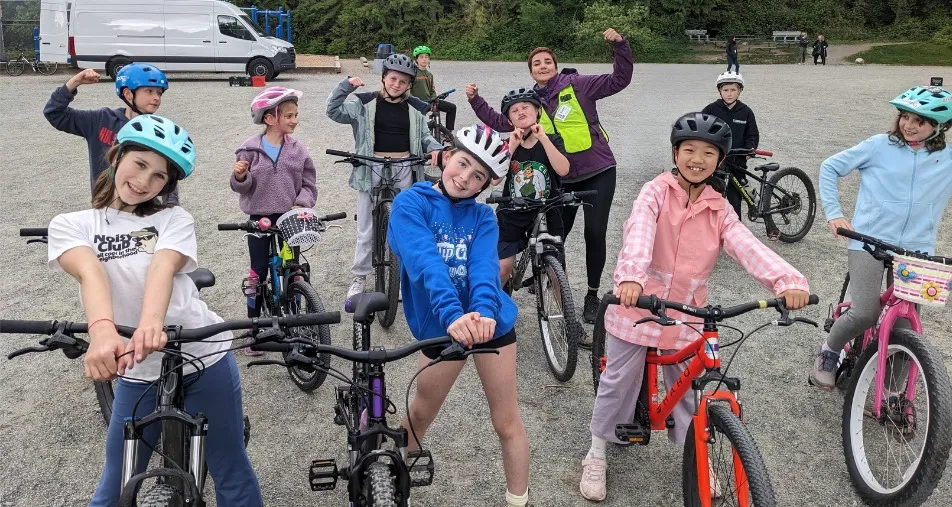
A basic gallery. Images open in a lightbox effect.
Option to display caption below images.

Logo block
Display logos from sponsors or clients/partners.
Title options to match design.
Horizontal rule on top option.



Map block
Ideally you add the url directly from a google map iframe embed code.
However this is built to accept the map url directly from the browser.
Heading block - display social media
The heading block can be used to display social media links.
If you want to display only the social media links, don't display the title, keep the button and text fields empty and select the show social media links button.
Example of a heading block showing only social media is below.
Spacing Block and Separator Block
Below this heading block is a spacing block and the separator block.
The space block is not visible on the front end. It will add or reduce the space between blocks by adding positive or negative margins.
Below the spacing block is adding space between this block and the separator block.
The separator block is a visual content separator (in this case a person riding a bike). This was part of the design for the home page.